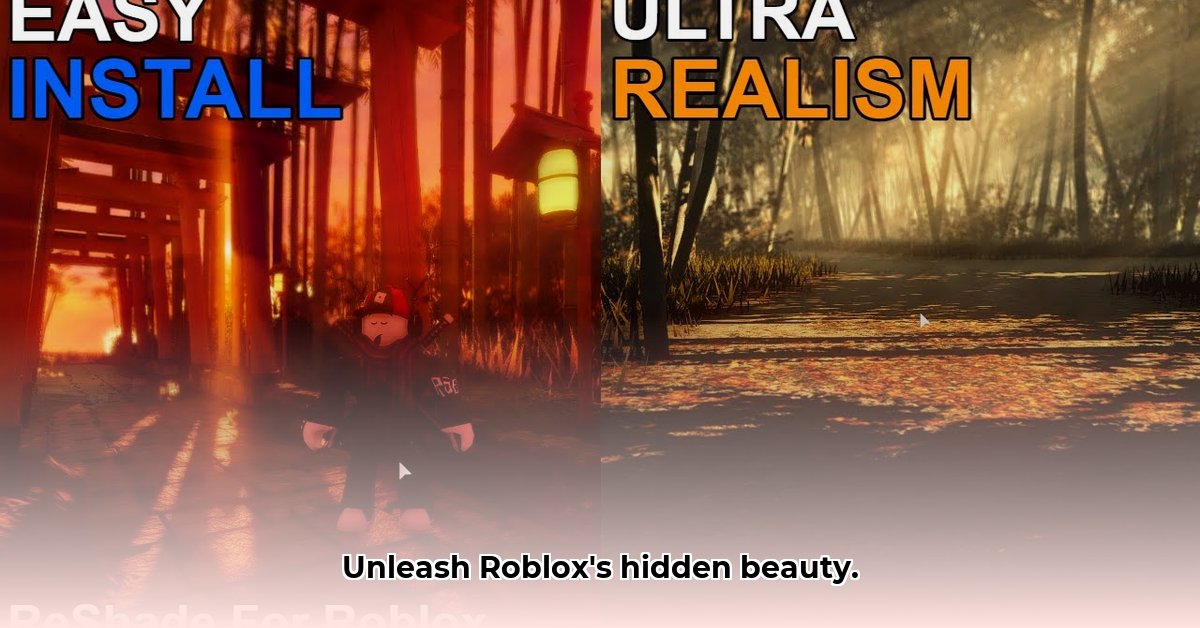
Want to transform your Roblox experience with stunning visuals? This guide provides a detailed, step-by-step walkthrough for downloading and installing Extravi's Reshade presets, including the powerful Bloxshade tool. We'll cover everything from prerequisites to troubleshooting, ensuring you achieve optimal performance and breathtaking graphics.
Before You Begin: System Requirements and Necessary Software
Before enhancing your Roblox visuals, ensure you meet the following prerequisites:
Roblox: A functioning and updated installation of Roblox is essential. Ensure you're running the latest version to avoid compatibility issues.
ReShade: ReShade (a post-processing injector) is the backbone of Extravi's presets. Download it from the official website. It's a free, open-source tool that seamlessly integrates with games, allowing for customized visual enhancements.
Extravi's Installer: This tool simplifies the installation and management of Extravi's ReShade presets for Roblox. You can find the latest version on GitHub 1.
Bloxshade (Optional): Bloxshade adds Ansel integration (for taking high-quality screenshots and videos) and further enhances graphical fidelity. It requires an Nvidia graphics card and an Nvidia Ansel installation. Download it separately from the same source as Extravi's Installer.
Sufficient System Resources: While Extravi's presets enhance visuals, they require system resources. A more powerful computer will deliver smoother performance at higher visual settings. Older systems might experience performance drops.
Installing Extravi's Installer: A Comprehensive Guide
Extravi's Installer simplifies the process of adding ReShade to Roblox. Follow these steps:
Download: Download the latest release of Extravi's Installer from its GitHub repository 1.
Run the Installer: Double-click the downloaded executable file.
Select Roblox Directory: The installer will prompt you to select the installation directory of your Roblox game. Accuracy is crucial here. Incorrect selection can lead to installation failures.
Preset Selection: Choose the desired ReShade preset(s). Extravi offers a range of options, each optimized for different visual styles and performance levels. Experiment to find a balance between visual quality and frame rate.
Complete Installation: Allow the installer to complete the process. This might take a few minutes, depending on your system's speed. Avoid interrupting the process.
Integrating Bloxshade: Enhancing Screenshots with Ansel (Optional)
Bloxshade, if installed, enhances your Roblox experience by adding seamless integration with Nvidia Ansel. This allows you to capture stunning, high-resolution screenshots and videos.
Download and Install: Download Bloxshade from the same source as Extravi's Installer and run the installer, following the on-screen instructions.
Verify Integration: After installation, launch Roblox and check for seamless integration with Nvidia Ansel. If Ansel isn't already installed, you'll need to download and install it separately from Nvidia's website.
Capture Stunning Images: Use Ansel's features to capture professional-grade screenshots and videos of your Roblox gameplay.
Managing Presets and Optimizing Performance
Both Extravi's Installer and Bloxshade usually include an in-game menu for managing presets. This allows you to easily switch between different visual styles and settings. Experiment to find the best balance between visuals and performance on your system. Remember: higher visual quality usually means a lower frame rate.
Optimization Tips:
- Lower In-Game Settings: Reduce Roblox's internal graphical settings for additional performance gains.
- Close Background Applications: Close unnecessary applications to free up system resources for Roblox.
- Hardware Upgrades: In cases of severe performance bottlenecks, consider upgrading your computer's RAM, CPU, or GPU. This is a more permanent solution for long-term performance improvement.
Troubleshooting Common Problems
Despite the user-friendly nature of these tools, occasionally you might encounter issues. Here are some common problems and their solutions:
- Low Frame Rates (FPS): Lower the preset's quality settings or reduce in-game graphics options.
- Game Crashes: Ensure your graphics card drivers are up-to-date. Outdated drivers can cause unexpected game crashes.
- Black Screen: Verify that the ReShade installation path within Extravi's Installer is correct. If issues persist, try reinstalling both ReShade and the Extravi installer.
Conclusion: Elevate Your Roblox Experience
Extravi's Installer and Bloxshade offer a powerful way to significantly enhance the graphical fidelity of your Roblox games. By following this guide, you can easily install and manage these tools, achieving a visual upgrade that significantly improves your gaming experience. Remember to regularly check for updates to benefit from new features and performance improvements.
⭐⭐⭐⭐☆ (4.8)
Download via Link 1
Download via Link 2
Last updated: Tuesday, April 29, 2025